Set up email forwarding on a GoDaddy domain
You can have email at your own GoDaddy-registered domain in about a minute. No mail server, no migration — just three DNS records.
1. Create an EForw account and add your domain
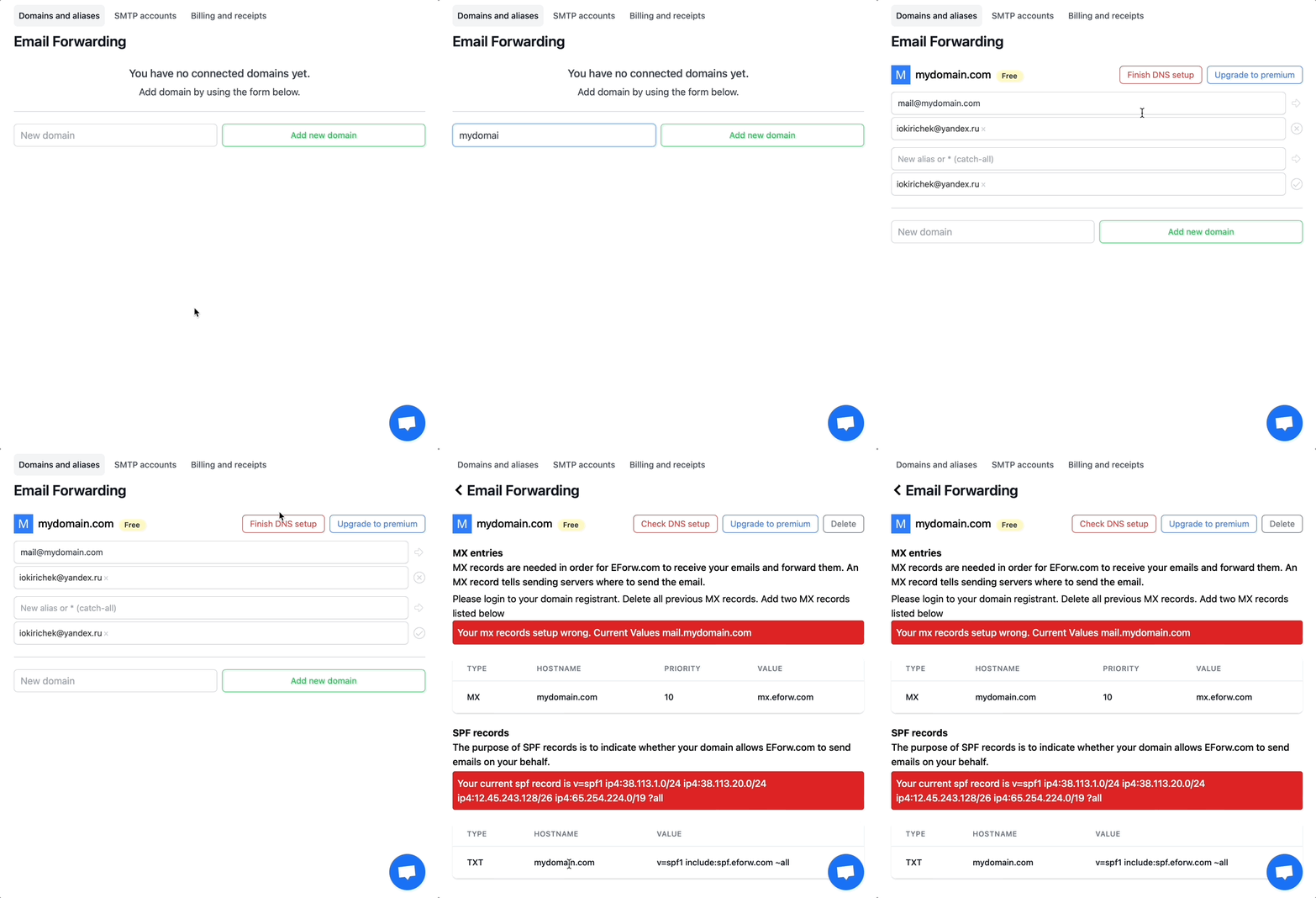
Sign up at app.eforw.com/signup, then add your domain in the dashboard. Open the DNS settings page — it shows you the exact records to copy, with the values pre-filled for your domain.
2. Paste the records into GoDaddy DNS
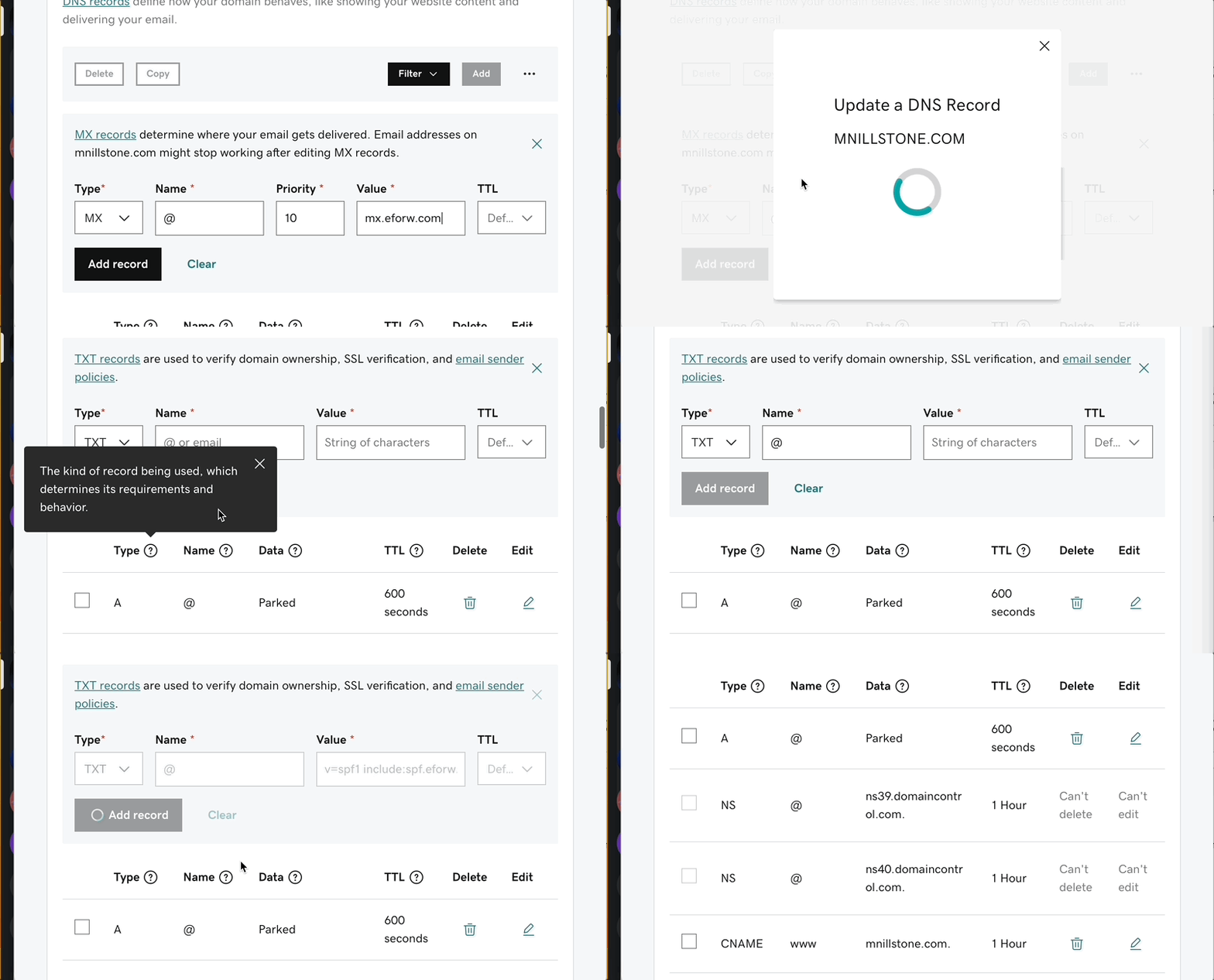
Log into GoDaddy → Domains → your domain → DNS. Add the three records EForw gives you. They’ll look like this (your domain in place of yourdomain.com):
MX     yourdomain.com.        10   mx.eforw.com.
TXT    yourdomain.com.        "v=spf1 include:spf.eforw.com ~all"
CNAME  dkim.yourdomain.com.   dkim.eforw.com.
The MX delivers incoming mail; SPF and DKIM keep your forwarded mail and your replies out of spam.
3. Verify
Back in EForw, click Check DNS setup. Each record should turn green. DNS usually propagates in seconds on GoDaddy but can take up to a few hours — if a record is still red after that, double-check the value or open a support chat from the dashboard.
That’s it. Anything sent to *@yourdomain.com now arrives at the inbox you registered with.
Replying from your domain
Forwarding handles inbound mail. To send as you@yourdomain.com from Gmail, follow the Gmail send-as guide. For other clients, EForw’s Personal plan includes SMTP credentials you can drop into Outlook, Apple Mail, or anywhere else.